What you will learn What each of groups and departments groups, how to layer them, and why per-person permission management collapses.
The names are confusing. Start here. A thread group groups conversations. Not people. A department groups people. So you layer them, as in "only Sales can see this thread group."
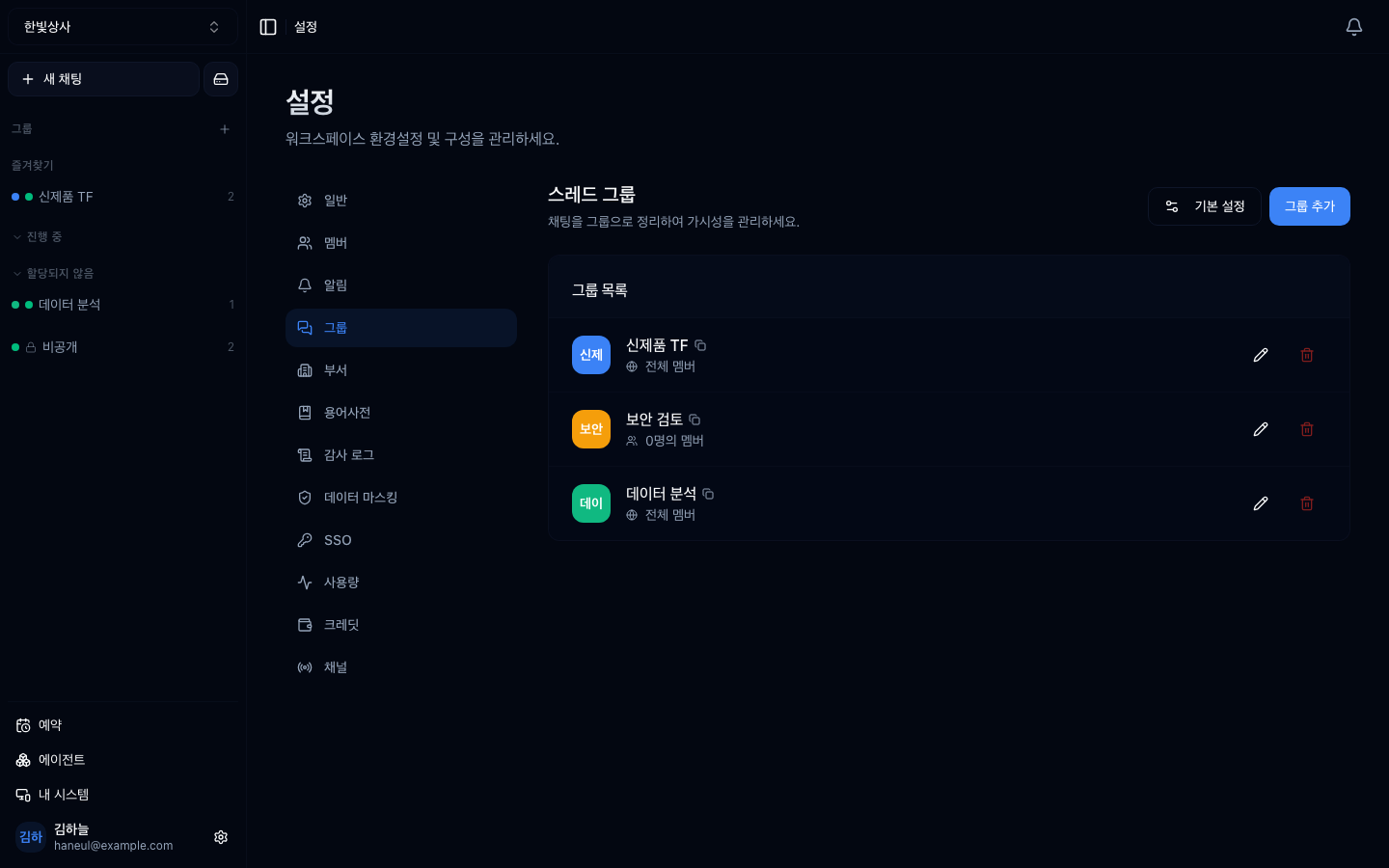
Each group can carry a colour, which is what distinguishes them at a glance in the sidebar. Note that the screen describes it as organising chats into groups — chats, not people.
With five members, configuring each person is fine. At thirty it becomes this:
You reach the point where nobody can describe the current state. That is why you need groupings.
graph TD
  W["Workspace"] --> D["Department<br/>groups people"]
  W --> G["Thread group<br/>groups conversations"]
  D --> M["member · member · member"]
  G --> T["thread · thread · thread"]
D -.->|"only this department can see it"| G| Department | Thread group | |
|---|---|---|
| What it groups | people | conversations (threads) |
| Basis | the org chart | topic or project |
| Example | Sales Team 1, Engineering | New Product TF, Security Review |
| Visibility | — | public to all or only chosen departments and people |
| Who can create | owner · admin | owner · admin |
The dotted line is the key. Set a thread group to "selected members only" and you can designate who sees it by department.
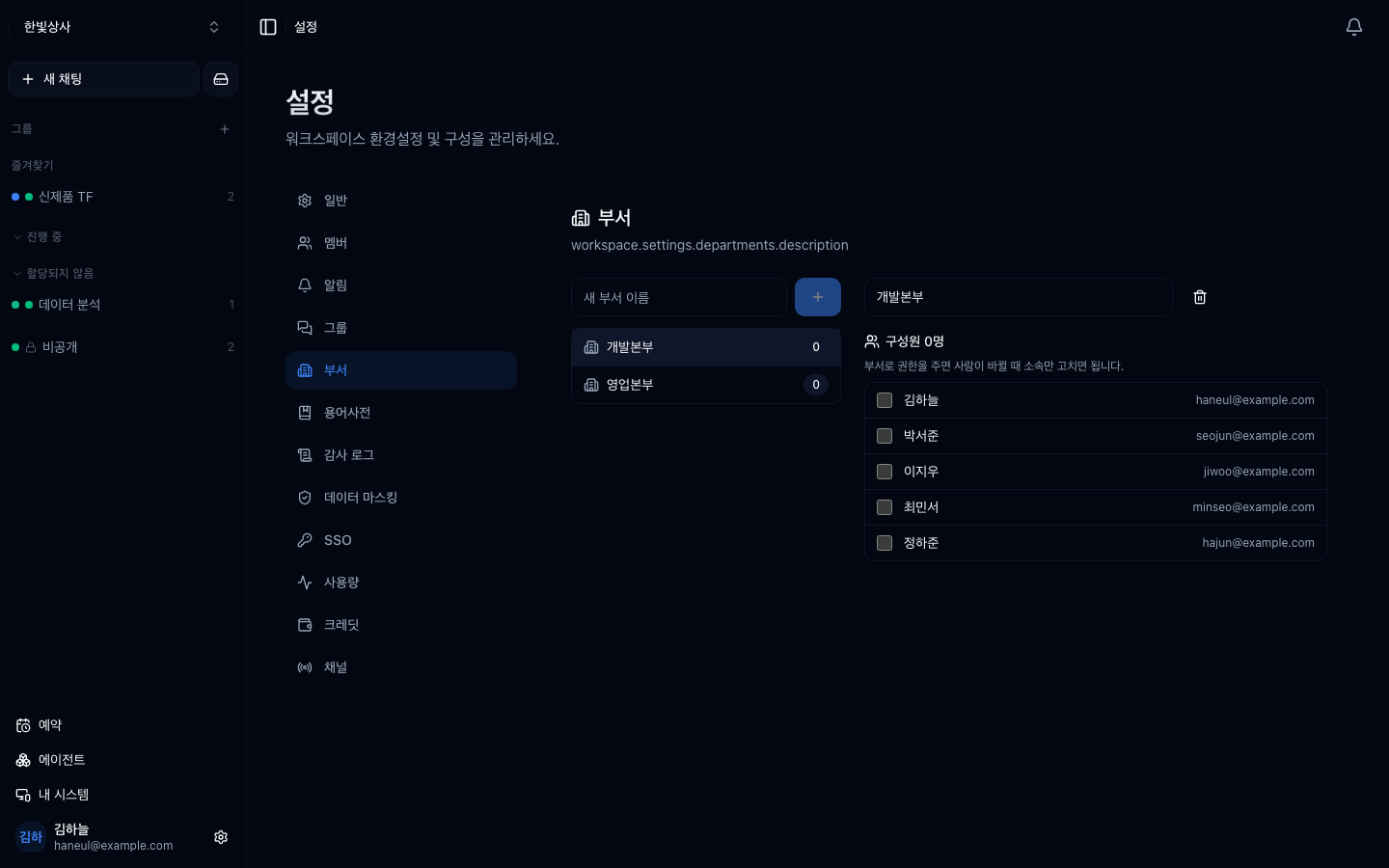
The departments screen. Mirror your org chart here and a staff move is just a change of membership.
Build it to match your actual org chart.
When to use it: when default permissions follow organisational structure. When someone transfers, you change only their department.
Drawers that hold conversations by topic or project, so your sidebar does not scatter. Each group can have a colour and an order.
On top of that you layer who can see it.
| Visibility | Meaning |
|---|---|
| Public to all (default) | any workspace member sees this group's conversations |
| Selected members only | only designated departments or individuals |
Under "selected members only," designate departments rather than individuals. Designate individuals and every departure or transfer means editing groups one by one, and when that slips, someone who left keeps seeing them. Designate departments and changing their membership carries everything with it.
Thread groups can also carry their own set of usable agents — you choose whether to inherit the workspace setting or differ for this group.
This is the core of the chapter.
Thread group visibility works the same way.
Granting permission to a new joiner becomes one action: "add to department." Nothing gets missed.
There is no need for complexity at the start.
| Size | Recommendation |
|---|---|
| ~10 | no departments. A few thread groups, public to all |
| 10–30 | create departments and set thread group visibility by department |
| 30+ | keep the department structure matched to the org chart and review it |
Create them when you need them. Creating them in advance only adds things to manage.
If every visible group were in the sidebar, someone joining a workspace with thirty groups would get thirty rows on day one. So the sidebar draws joined groups only.
| When you are joined automatically |
|---|
| A new group is created visible to all → everyone in the workspace at that moment |
| You are newly granted access → you |
| You join the workspace later → only the first few fully-visible groups |
For the rest, go in through browse groups.
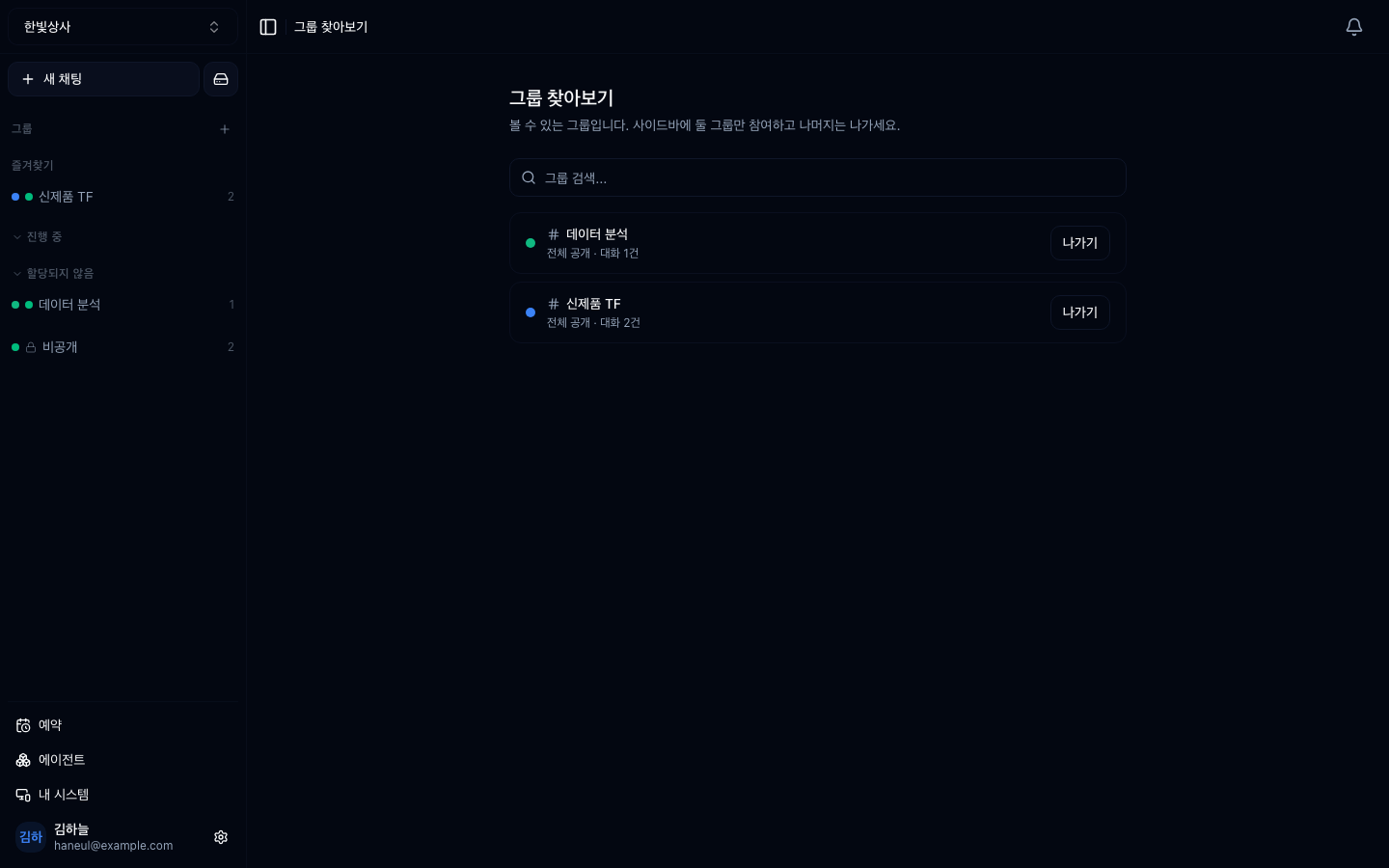
The list contains only what you may see. Leaking even the name of a selectively-visible group is a disclosure, so without access it does not exist as far as the screen is concerned.
Groups you have already joined are shown too — half the people who open this screen came to check "am I in that one?". Leaving is also done here.
Sidebars get long as groups accumulate. There are three tools.
| Tool | What it does |
|---|---|
| Favourite | Lifts it into a separate group at the top |
| Section | Groups entries under a name you choose (e.g. "In progress") |
| Mute | Keeps it listed but drops notifications and emphasis |
All three are personal. Tidying yours leaves your teammates' sidebars untouched. Sections can be reordered by dragging and collapsed.
You have to be able to recognise a finished group to tidy up.
When a project ends and the group remains, your sidebar just gets longer. Note "until when" as you create it.
Invent your own and every transfer causes confusion. Copying the org chart from the HR system is easier to maintain.
1. What do departments and thread groups each group?
Departments group people, thread groups group conversations. They are not competing — you layer them. Setting a thread group to "selected members only" and designating the viewers by department is the basic usage.
2. Why grant permissions to groupings rather than individuals?
Because granting permission to a new joiner becomes one action: "add to the department." Start adjusting per person and eventually nobody can describe the current state, and people who left keep having access.
3. At ten people, what should you create first?
You do not need departments yet. A few thread groups, public to all, is enough; at 10–30 you create departments and move visibility onto them.
Now how to see the cost → Usage and credits
"Why can't Kim use this tool?""Hmm... no idea who changed it or when"Company ├─ Sales Division │ ├─ Sales Team 1 │ └─ Sales Team 2 └─ Engineering Division └─ Platform TeamNew Product TF ← conversations about this projectSecurity Review ← security-related conversationsData Analysis ← analysis requests✗ CRM tool permission for Kim CRM tool permission for Lee CRM tool permission for Park ... (one at a time)✓ CRM tool permission for the Sales Division → adding a person to the department is the whole job✗ Add Kim, Lee, Park and Choi to the Security Review group one at a time✓ Make the Security Review group visible to "Engineering + Legal"✗ "Group 1", "Temp", "TF"✓ "NewProduct-TF-2026H1", "SecurityReview"□ are there thread groups whose purpose has ended□ does the department structure match the actual organisation□ is anyone not in a department□ are any "selected members only" groups pinned to individuals HyperTeams