What this chapter covers How to start the model server and choose what to download first, how to know before downloading whether it runs on this machine, and the two things you hit right after.
Your machine as a model server opens with "change the base URL and your machine's model answers." That's true — but only if the model is actually there. This chapter is the slot in front of it.
Open Settings → Models and you get three groups. The order means something.
| Group | The question it answers |
|---|---|
| Model server | Where is the server that runs models |
| Models | What do I install, and what is installed |
| Using it from outside | Where do I call this from |
The server comes first because without it the middle group means nothing — the models group is only drawn once the server is reachable. When the server is off, the first line of the screen is your next step.
| Choice | What it means |
|---|---|
| Run on this machine | The dashboard downloads, starts and stops the model server itself. The address is fixed |
| Connect to another address | It only attaches to a server that is already running |
If you pick the second, installing, starting and stopping happen where that server lives — not here. That is the shape for a team with one shared machine.
Switching from remote back to local asks once, because it drops the connection you currently have. The previous address is remembered, so it's reversible.
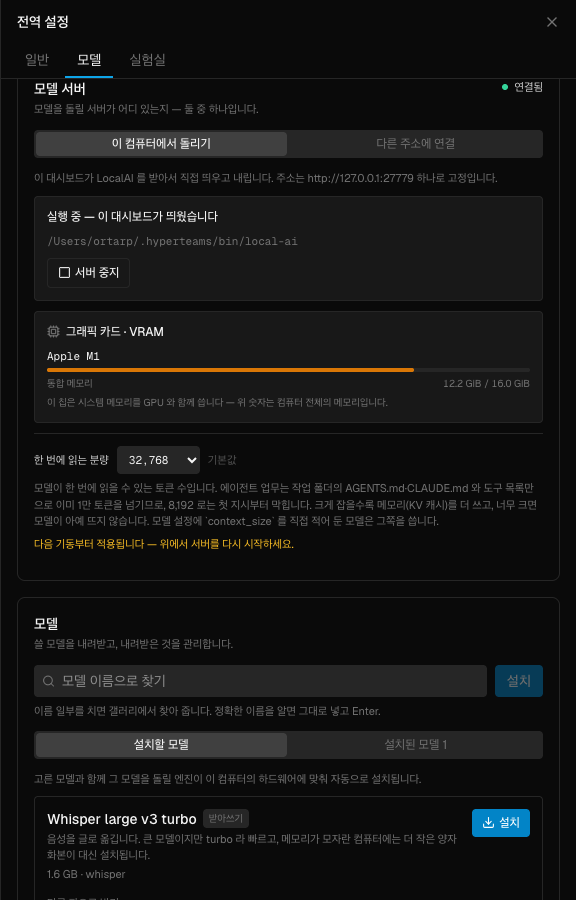
"Run on this machine" selected, server started. Your machine.s memory sits right below it, and under that is the context size covered later on.
There is no catalogue on this screen. The gallery has roughly 1,600 entries and none of them are browsable. Five presets take that place, and a text field takes the rest by name.
This is deliberate. Showing 1,600 entries to someone who doesn't know the names isn't help, and models are a particularly bad case — pick wrong and you find out it doesn't run on this machine only after tens of gigabytes have downloaded.
There is a search box, but not for browsing. It narrows a name you already typed — its job is fixing a typo and confirming the entry exists.
| Model | What it does | Size |
|---|---|---|
| Whisper large v3 turbo | Speech → text | 1.6 GB |
| Fish Speech S2 Pro | Text → speech | ~2 GB |
| Gemma 4 E4B | Chat | ~4 GB |
| Qwen3.6 35B A3B | Chat — larger | ~21 GB |
| Z-Image Turbo | Image generation | ~7 GB |
Which one first? Whichever the surrounding chapters actually use.
graph TD
  A["What are you trying to do"] --> B["Meeting notes, video summaries"]
  A --> C["Turn a script into speech"]
  A --> D["Classify, tag, summarise"]
  A --> E["Generate images"]
  B --> B1["Whisper<br/>1.6 GB — the smallest"]
  C --> C1["Fish Speech"]
  D --> D1["Gemma 4 E4B"]
  E --> E1["Z-Image Turbo"]
Working with speech and images and Getting material out of video call the first and second rows respectively. The smallest one is the one you use most often.
Before you press install, the screen measures whether this machine can take it. There are four verdicts.
| Verdict | Meaning |
|---|---|
| Runs on this PC | Go ahead |
| Runs, but the margin is tight | It works. Read below first |
| Not enough on this PC | Pick something smaller, or clear space first |
| Couldn't determine | It failed to measure — not a yes and not a no |
Memory and disk are judged separately. A laptop with plenty of RAM and no disk, and a machine with an empty disk and 8GB of RAM, fail for different reasons and need different actions — delete files, or choose a smaller model. Collapsed into one number, the screen couldn't tell you which.
Don't wave off "tight". That verdict appears when the headroom is under 1.25× what's needed. The model isn't alone in memory — the OS, your browser and this dashboard are already in there. Fitting exactly isn't "it works", it's "it starts swapping".
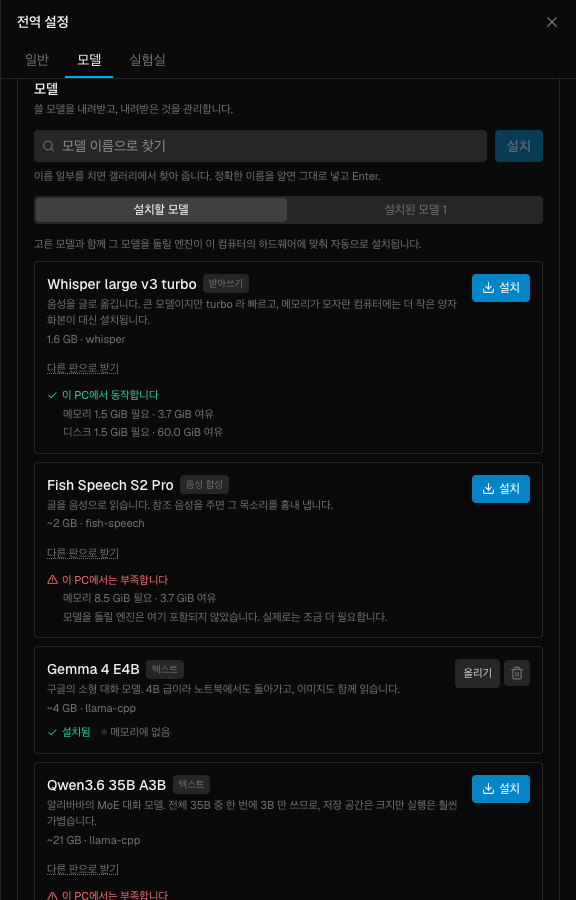
Same machine — the top one "runs", the one below "is not enough". Required and available sit side by side, so what is short is immediately visible.
The "get a different build" link on each card picks a smaller variant of the same model. Look there before giving up on a model that came back "not enough".
Also, that estimate covers the weights. The engine that runs the model is not included — as the next section shows, some engines are several gigabytes by themselves. That's why the disk check demands a generous multiple.
There is an "install anyway" button. But pressing it on a "not enough" verdict is the most expensive way to fail — you download the whole thing and then it fails to load.
Model files alone do nothing. A separate program runs them, and the screen calls these inference engines.
You don't pick one. Installing a model pulls the matching engine, chosen for your hardware. Two things are worth knowing.
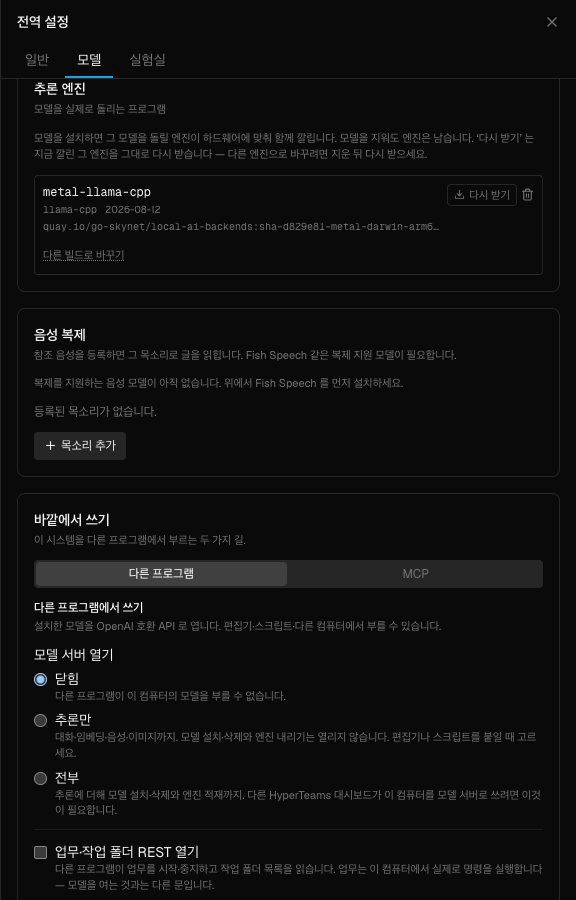
Under the engine name is which image it came from — the only clue to "why is this one installed". If you only want a different build, "switch build" saves you the delete-and-refetch round trip.
Sometimes a warning appears on an engine — it can't use the GPU and is running on the CPU. The symptom isn't so much "slow" as "the request never finishes".
Deleting and re-downloading does not help here. What gets fetched is decided at install time and that decision comes out the same every time, so you get the same CPU build back. The "run repair again" action exists for this case. Don't spend several gigabytes to change nothing.
This is the first thing you hit after the download. The model server loads models with a small context. That's fine for a person asking a question or two, but agent work does not fit in it.
The rules files in the working directory, the tool descriptions and the system instructions already fill it, and reading a single file goes over. The real failure looks like this:
You raise it once in the server settings, not per model — and everything installed afterwards follows it too.
The new value applies from the next start. The screen says so — after choosing, restart the server once for it to actually take effect.
Context is memory. The cache that holds the conversation grows in proportion to it. Measured on one model:
| Context | Cache alone |
|---|---|
| 8,192 | 1.3 GiB |
| 16,384 | 2.6 GiB |
| 32,768 | 5.3 GiB |
| 131,072 | 21.0 GiB |
That model can go to 131,072. But set it there on a 16 GiB machine and the cache alone is 21 GiB, so it never loads at all. The default is therefore not "the model's maximum" but "enough for agent work and safe on an ordinary machine". Raising it is your call, and the screen shows the cost alongside.
In the installed-models tab, a green dot means the model is currently in memory. Unloading it leaves the file in place — it is not a deletion.
And here is the check the next chapter actually uses:
If your name shows up here, you're ready. "The model names are different" in the next chapter is about exactly this list.
People pull the 21 GB model, find it won't run, and give up. Most jobs are done by the 1.6 GB one — the one Working with speech and images and the video chapter use.
"Install anyway" is for a "couldn't determine" verdict, not for a "not enough" one.
The cache eats the memory and the model stops loading entirely. Raise it one step at a time, and only when the work actually fails.
Several gigabytes later you get the same thing back. Use "run repair again".
1. You want to turn a meeting recording into text. What do you download first?
Whisper. It's the smallest preset (1.6 GB), and speech-to-text is where this guide uses a local model most often. A large chat model isn't needed for that job.
2. What does "runs, but the margin is tight" actually mean?
Headroom is under 1.25× what's required. The OS, the browser and the dashboard are already using memory, so fitting exactly isn't working — it's starting to swap.
3. An engine warns that it's running on the CPU. What do you do?
Run repair again. Deleting and re-downloading brings back the same CPU build, because what gets fetched is decided at install time and that decision is the same every time.
Now call that model from your code → Your machine as a model server
request (18457 tokens) exceeds the available context size (8192 tokens)curl -H "Authorization: Bearer $HT_KEY" \ http://localhost:27777/api/ai/v1/models HyperTeams